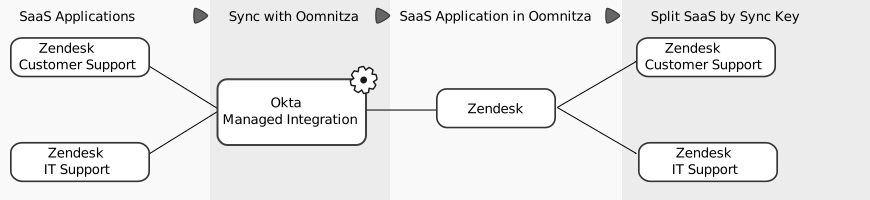
In Okta SSO, you can have multiple instances of the same SaaS application such as Zendesk for Customer Support and Zendesk for Internal Support. In Oomnitza, you can manage these instances separately as if each instance was a separate SaaS application. This enables you to manage the SaaS users, manage the contracts, budget costs, and track the usage of each SaaS application.
When you configure a management integration for Okta, you can activate the enhanced detection option. This enables the detection not only of the users who are active, but also users who bypass the SSO, or users who never log into the SaaS application. It also returns SaaS applications that are not active, for example, when none of your users log into one of your organization's SaaS applications.
Scenario
Let's say you use a management integration, such as Okta, to load SaaS user and SaaS activity information for Zendesk into Oomnitza. You have one Zendesk application for customer support, and one for internal IT support.
In Oomnitza, you can choose whether to split the SaaS instance into its individual SaaS applications. For example, you can split the Zendesk instance into separate SaaS applications. Then, you can create a budget, add usage stats, monitor activity, analyze usage, and assign custom contracts for each SaaS application.
Process
- From the menu, click Software.
- Click the SaaS software record.
- From the Actions menu, click Synced keys.
- Select the application.
Result
A new SaaS software record is created.
Tip
You can change the name of the SaaS application. Don't forget the name must be unique.
Important
When you split SaaS applications, you must create a workflow for each new record that is split to retrieve the SaaS user role. See Create a SaaS user role retrieval workflow.
Next
Creating an extended integration for SaaS users
In some cases, depending on the SaaS system, you might not load all of the SaaS users into Oomnitza. For example, some users of the SaaS system might not log in or might bypass SSO to log into the SaaS application. To ensure that you load all SaaS users, you can create an extended integration for the users of the application.
Tip
To find out how to create an extended user integration for Users and SaaS users, go to Integrations, and enter the name of the SaaS and User as search criteria.
Related articles
 Creating a SaaS management integration for Okta
 Create SaaS contracts to budget costs
Comments
0 comments
Please sign in to leave a comment.