Best practice
For the integration with Oomnitza, create a dedicated user account in GitLab.
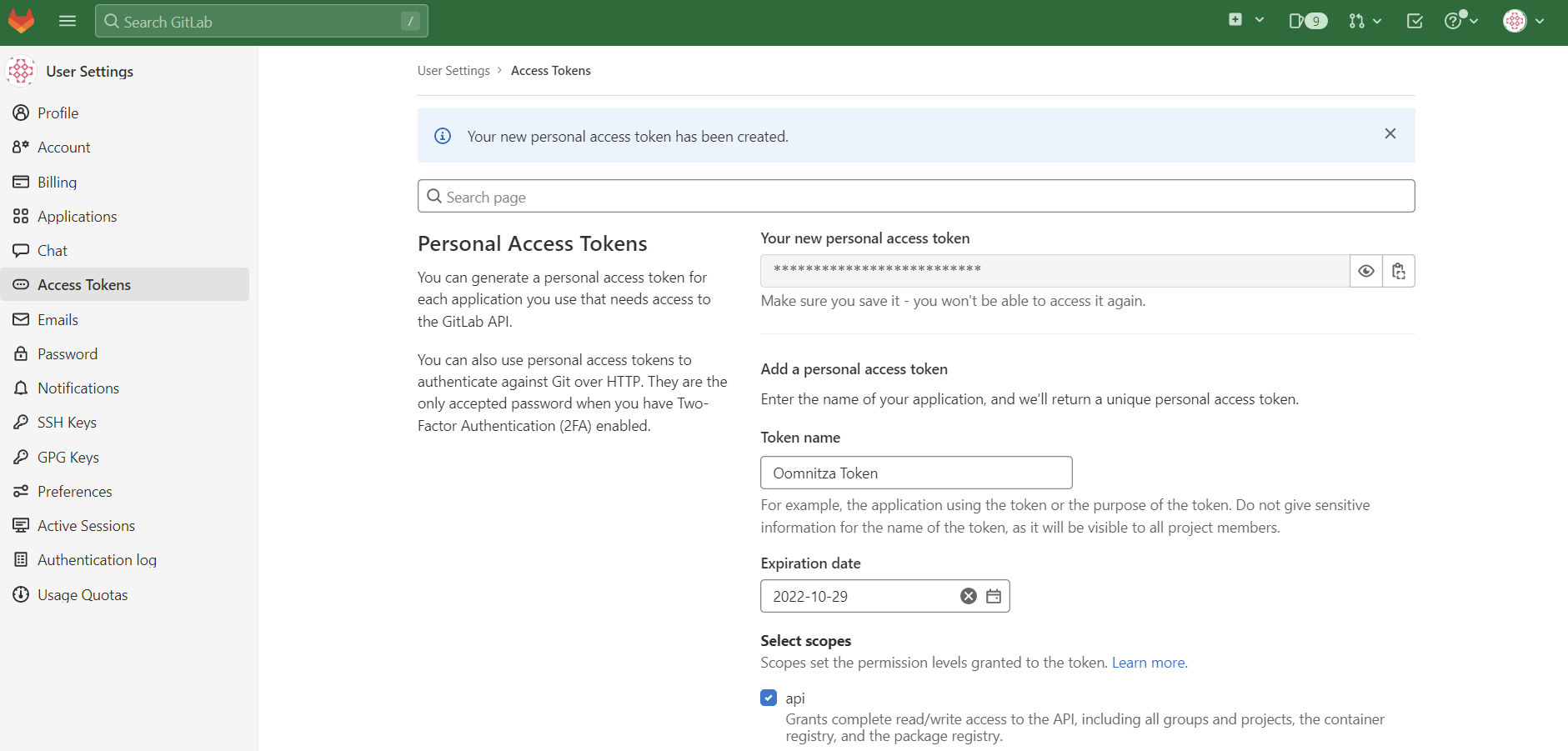
GitLab uses API authentication and requires your API Key to be added to Oomnitza. To obtain your API Key, complete the following steps:
- Log in to GitLab or create a free GitLab account.
- Select the arrow next to your profile in the upper right of the window, and select Edit Profile.
- Click on Access Tokens on the left sidebar.
- Give a descriptive name for your token.
- Update or extend the expiration date.
-
Select the
apiscope for complete read/write access to the API. - Click on the Create personal access token button.
- Scroll to the top of the page and copy the token displayed in Your new personal access token. Make sure to save this token and store it securely, as it will not be visible again.
Adding your GitLab credentials
To stream GitLab user data into Oomnitza, complete the following steps:
- In Oomnitza, click Configuration > Security > Credentials.
- Click Add new credential (+).
- Search for the integration, and then click the forward button > to select the integration.
- Add your API key.
- Click Create.
Integration not in the list? Click Advanced Mode and complete these steps:
- Add the information details.
- Click the AUTHORIZATION tab.
- Ensure that API Key is selected as the Authorization type.
- Ensure that the Token Name is Authorization
- Enter "Bearer" followed by a space and the API Key. For example,
Bearer aefgd-adw3n-jknadd78l1kjndc. - Ensure that Add to Header is selected.
- Click CREATE.
Documentation:
 GitLab Documentation: Personal Access Tokens
Next steps
 Now that you have added your GitLab credentials to Oomnitza, you can run the GitLab user load.
Comments
0 comments
Please sign in to leave a comment.