Use the import feature in Oomnitza to add multiple new contracts and to update multiple contracts.

Illustration of importing process
For uploading contracts, the following types of files are supported:
- CSV (comma-separated values) files
- Google sheet files
- XLS files
- XLSX files
Contents
- Importing enterprise contracts for desktop software
- Tutorial: Importing enterprise contracts for desktop software
- Tutorial: Updating contracts
- Tutorial: Importing SaaS enterprise contracts
- Fields and values for importing enterprise contracts for desktop software
- Fields and values for importing SaaS contracts
Importing enterprise contracts for desktop software
You can create multiple new records and update multiple existing records by importing the contract information into Oomnitza.
Tutorial: Importing enterprise contracts for desktop software
You have created the file that you want to use to import the new enterprise contracts for desktop software contracts:
| Contract Name | Software Name | Contract Currency | Number of Seats | Contract Type | Contract Start Date | Contract End Date |
| ContractName1 | SoftwareName1 | EUR | 1 | Desktop Software Contract - Enterprise | 01/07/2022 | 01/08/2023 |
| ContractName2 | SoftwareName2 | EUR | 19 | Desktop Software Contract - Enterprise | 01/07/2022 | 01/08/2023 |
| ContractName3 | SoftwareName3 | EUR | 20 | Desktop Software Contract - Enterprise | 01/07/2022 | 01/08/2023 |
Illustration of spreadsheet for importing multiple enterprise contracts for desktop software
Procedure
- From the menu, click Contracts.
- Click Import.
- Upload the file.
- Select Create as the import preference.
- Click CONTINUE.
- Click SMART MAPPING.
- Select Contract Name as the sync key.
- Click VALIDATE. If errors are generated, click SHOW DETAILS. You can continue with the import, if you get warning errors. If you get block errors, you must resolve the errors in the import file and upload it again.
- Click IMPORT.
Result
The new contract records are successfully imported.
Next
You can view and edit the contracts on the Contracts page.
Tutorial: Updating contracts
Let's say you want to update the contracts that you imported into Oomnitza.
To do this, you create a new import file and you specify:
- The names of the contracts. You must add the contract names to uniquely identify the contracts that you want to update.
- The field names and the values that you want to update.
In this tutorial, you want the renewal date for the contract to be automatically calculated. So, you set auto renewal to 'yes'.
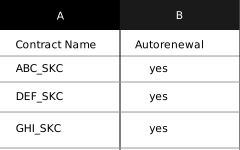
Illustration of spreadsheet for updating multiple new enterprise contracts for desktop software
Procedure
- From the menu, click Contracts.
- Click Import.
- Upload the file.
- Select Update as the import preference.
- Click CONTINUE.
- Click SMART MAPPING.
- Select Contract Name as the sync key.
- Click VALIDATE. If errors are generated, click SHOW DETAILS. You can continue with the import, if you get warning errors. If you get block errors, you must resolve the errors in the import file and upload it again.
- Click IMPORT.
Result
The checkbox for auto renewal is selected in the contracts that were updated. And, the renewal date is automatically calculated based on the payment date and the schedule that was selected.
Next
You can view and edit the updated contracts on the Contracts page.
Tutorial: Importing SaaS enterprise contracts
You have created the file that you want to use to import multiple new SaaS enterprise contracts:
| Contract Name | SaaS Name | Payment Schedule | Contract Currency | Number of Licenses | Limit # of Licenses | Calculate Per-user Price | Contract Type | Contract Start Date | Contract End Date |
| SaaS1 | Name1 | Monthly | USD | 10 | yes | yes | SaaS Contract - Enterprise | 01/07/2022 | 01/08/2023 |
| SaaS2 | Name2 | Monthly | USD | 20 | yes | yes | SaaS Contract - Enterprise | 01/07/2022 | 01/08/2023 |
| SaaS3 | Name3 | Monthly | USD | 30 | yes | yes | SaaS Contract - Enterprise | 01/07/2022 | 01/08/2023 |
Illustration of spreadsheet for importing new SaaS enterprise contracts
You can create multiple new records and update multiple existing records by importing the contract information into Oomnitza.
Procedure
- From the menu, click Contracts.
- Click Import.
- Upload the file.
- Select Create as the import preference.
- Click CONTINUE.
- Click SMART MAPPING.
- Select Contract Name as the sync key.
- Click VALIDATE. If errors are generated, click SHOW DETAILS. You can continue with the import, if you get warning errors. If you get block errors, you must resolve the errors in the import file and upload it again.
- Click IMPORT.
Result
The new contract records are successfully imported.
Next
You can view and edit the SaaS contracts on the Contracts page.
Fields and values for importing enterprise contracts for desktop software
Use this information to create the import file for new contracts for desktop software. You don't have to add all of the fields and values, but you must add the mandatory fields and the values for the mandatory fields.
Table 1: Field names and values
| Field Name | Mandatory | Comment |
| Contract Name |
Yes |
Unique name, which will be selected as the sync key. |
| Contract Type |
Yes |
Desktop Software Contract - Enterprise |
| Contract Start Date |
No |
Contract start and end dates are used to calculate the budgeted costs of the contract. |
| Contract End Date |
No |
Contract start and end dates are used to calculate the budgeted costs of the contract. |
| Software Name | Yes | The name of the associated software, which was added to Oomnitza. |
| Payment Date | No | Date for the first payment. Use these formats DD/MM/YYYY or MM/DD/YYYY. If you want to automatically renew a contract, you must enter the payment date so that the renewal date can be calculated. |
| Contract Currency | Yes | Default values are GBP, EUR, and USD. You can add new currencies. |
| Payment Schedule | Yes | Valid values are annually, monthly, or quarterly. |
| Autorenewal | No | Yes or no. |
| Renewal Date | No | Date for renewing contract. This date is automatically calculated when the payment date is entered and auto renewal is selected. |
| Price | No | Decimal value such as 1000.00. |
| Responsible Person | No | First and last name. A user record for the person must have been added to Oomnitza. |
| Number of Seats | Yes | Number. |
| License Key | Yes | Unique combination of numbers and characters. |
| Status | No | By default, the status is set to Requested. Valid values are Active, Canceled, On Hold, Rejected, or Requested. |
Additional administration fields, such as contract ID and created by, are automatically added when the contract record is created.
Tip
Already added a desktop software or a SaaS enterprise contract to Oomnitza? Select the contract on the Contracts page and export it. Edit it and reuse it for importing contracts.
Fields and values for importing SaaS contracts
Use this information to create the import file for new SaaS contracts. You don't have to add all of the fields and values, but you must add the mandatory fields and the values for the mandatory fields.
Table 1: Field names and values for SaaS contracts
| Field Name | Mandatory | Comment |
| Contract Name |
Yes |
Unique name, which will be selected as the sync key. |
| Contract Type |
Yes |
SaaS Contract - Enterprise |
| SaaS Name | Yes | The name of the associated SaaS software, which was added to Oomnitza. |
| Contract Start Date |
No |
Contract start and end dates are used to calculate the budgeted costs of the contract. |
| Contract End Date |
No |
Contract start and end dates are used to calculate the budgeted costs of the contract. |
| Payment Date | No | Date for the first payment. Use these formats DD/MM/YYYY or MM/DD/YYYY. |
| Payment Schedule | Yes | Valid values are annually, monthly, or quarterly. |
| Autorenewal | No | Yes or no. |
| Renewal Date | No | Date for renewing contract. This date is automatically calculated when the payment date is entered and auto renewal is selected. |
| Contract Currency | Yes | Default values are GBP, EUR, and USD. You can add new currencies. |
| Calculate Per-user Price | Yes | Valid values are yes or no. |
| Responsible Person | No | First and last name. A user record for the person must have been added to Oomnitza. |
| Number of Licenses | Yes | Numeric. |
| Limit # of Licenses | Yes | Numeric. |
| Status | No | By default, the status is set to Requested. Valid values are Active, Canceled, On Hold, Rejected, or Requested |
Related articles
 Adding and managing enterprise contracts for desktop software
Adding and managing SaaS enterprise contracts
Comments
0 comments
Please sign in to leave a comment.